Data-SOS Video Recovery Software Help
Install Software
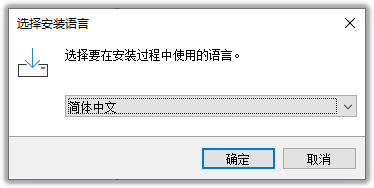
After downloading the software, open the compressed package and run Setup.exe to start the installation wizard. You can select the installation wizard language and installation path according to your needs. Click [OK] [Next] [Finish] to complete.
Interface Functions
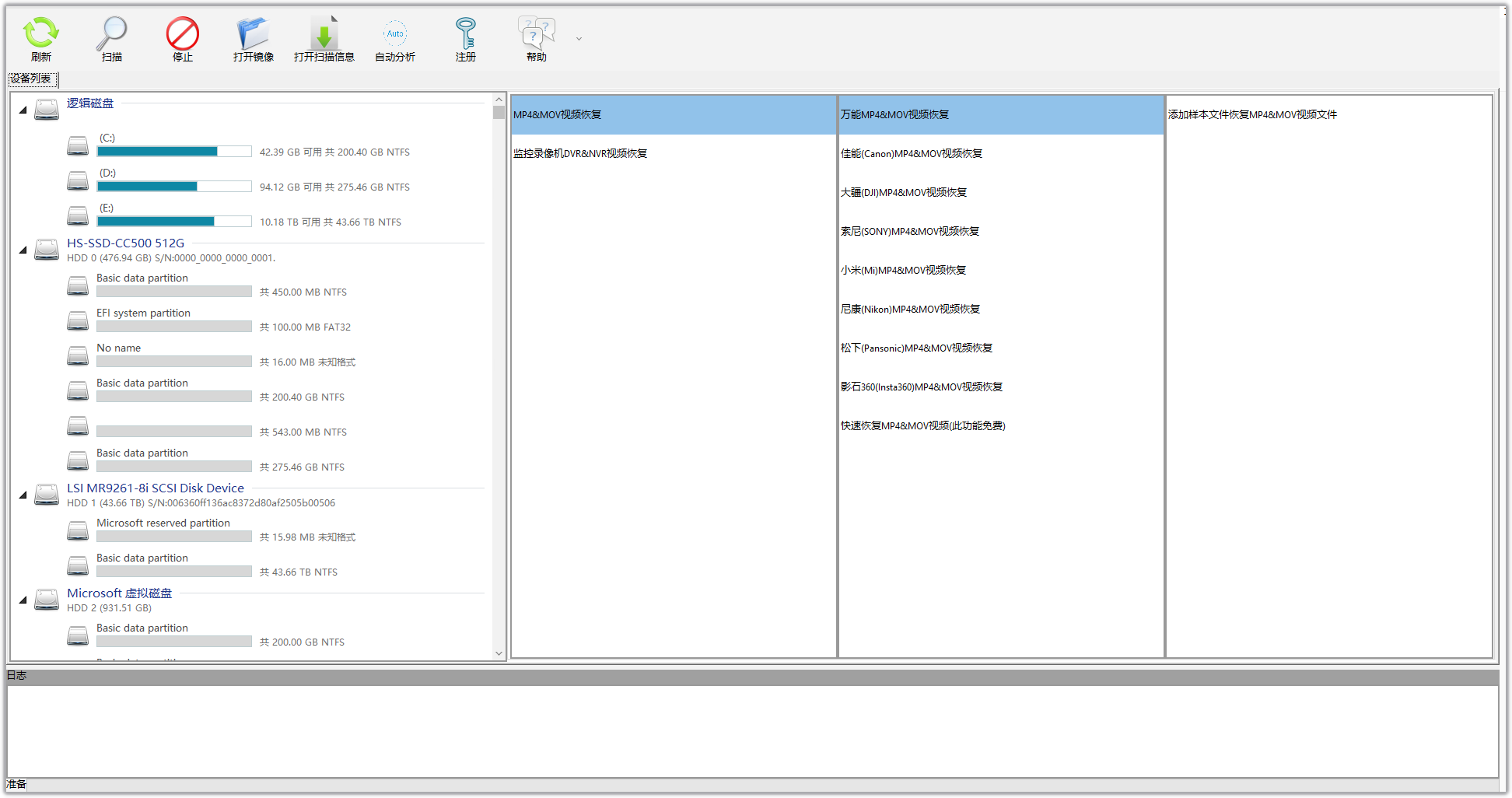
Refresh
Refresh the Logical Disks and Physical Disks list in [Device List];
Scan
Select the storage device and function to scan, then start scanning;
Stop
Stop the current task in progress, such as [Scan] [Save File] [Preview], etc.;
Register
Click the [Register] button
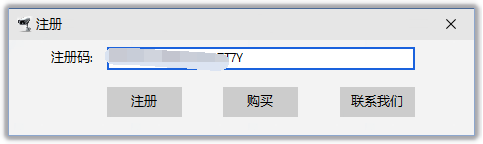
If you have a registration code, enter it and click [Register] button. If you don't have a registration code, click [Buy] button
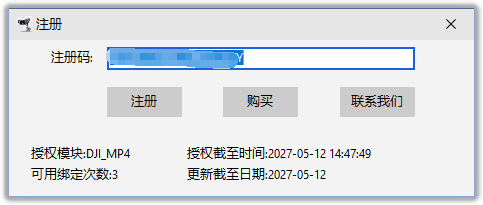
If registration is successful, click the [Register] button on the main window again to see the registration information. At this point, you can disconnect the computer's network connection;
Using the Software
Select Function
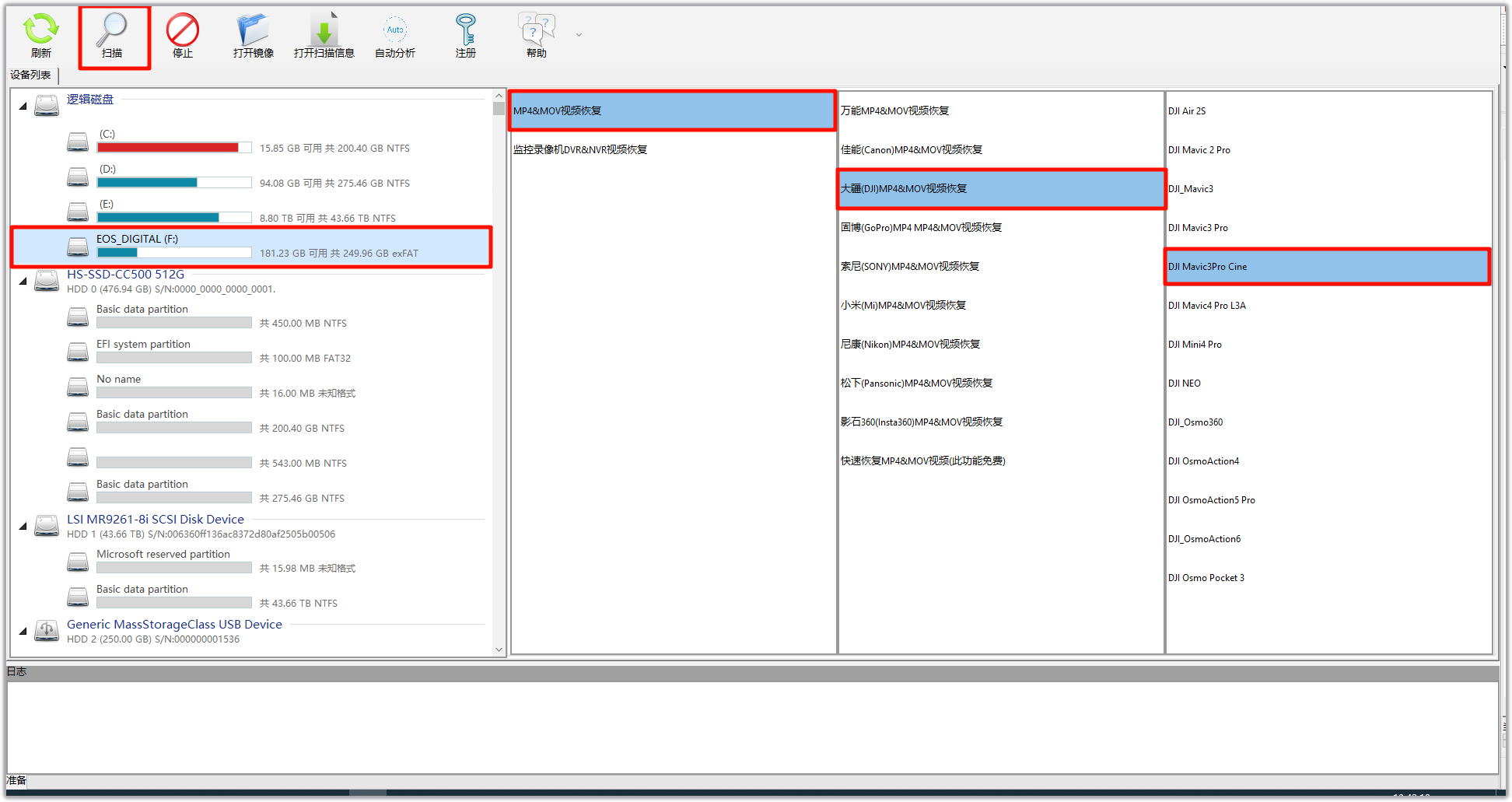
Select the partition or disk you need to recover;
For MP4/MOV video recovery, if the logical disk shows normal capacity, select the logical disk. If the logical disk doesn't show normal capacity, select the partition under the physical disk;
For DVR/NVR video recovery, select the physical disk
Select the brand and model that matches the video you need to recover, then click the [Scan] button on the toolbar
DVR/NVR Quick Parse: Parse existing videos in file systems such as Dahua, Hikvision, etc.
DVR/NVR Deep Parse: Recover all videos in the hard disk including existing and deleted ones
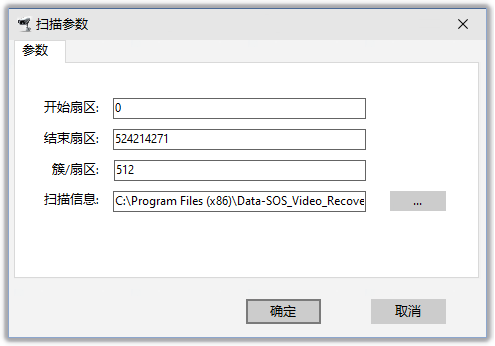
Scan Parameters
If you know what you are doing, you can modify them, otherwise keep the default settings
Scanning Process
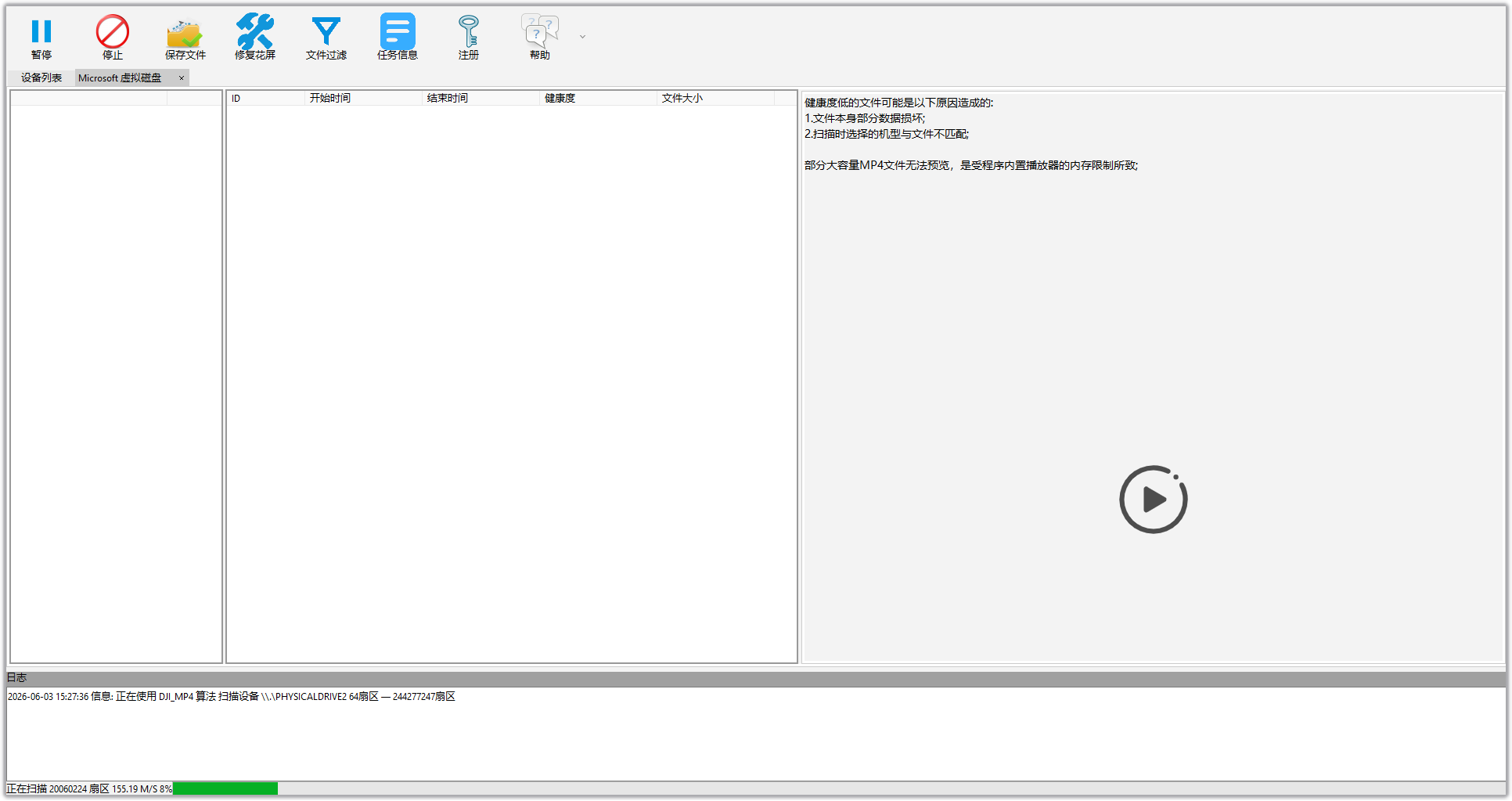
Pause
Pause the current scanning process; if the scan has already found the files you need, you can pause the scan and [Save] the files
Save Files
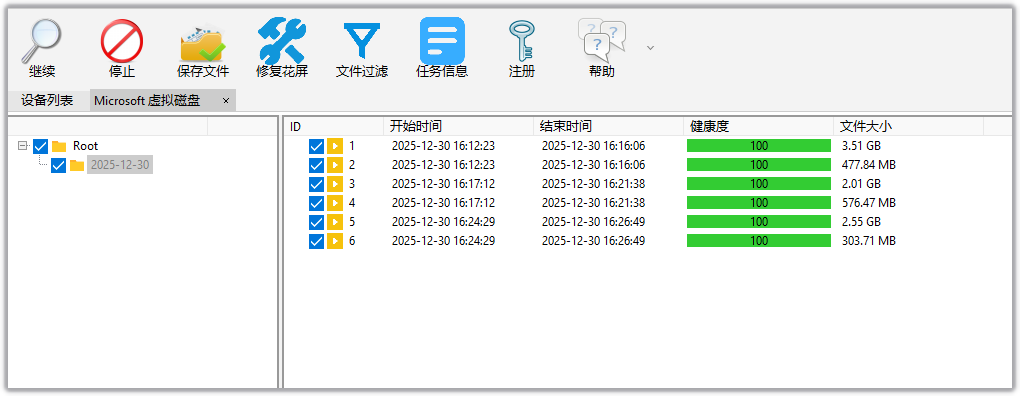
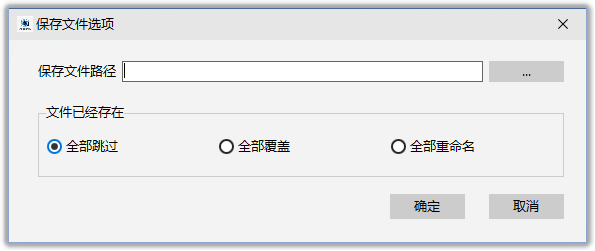
Check the files or folders you need to save, click [Save File] and select the path where you want to save the files. If you need to stop saving during the process, click the [Stop] button on the toolbar
Preview Video
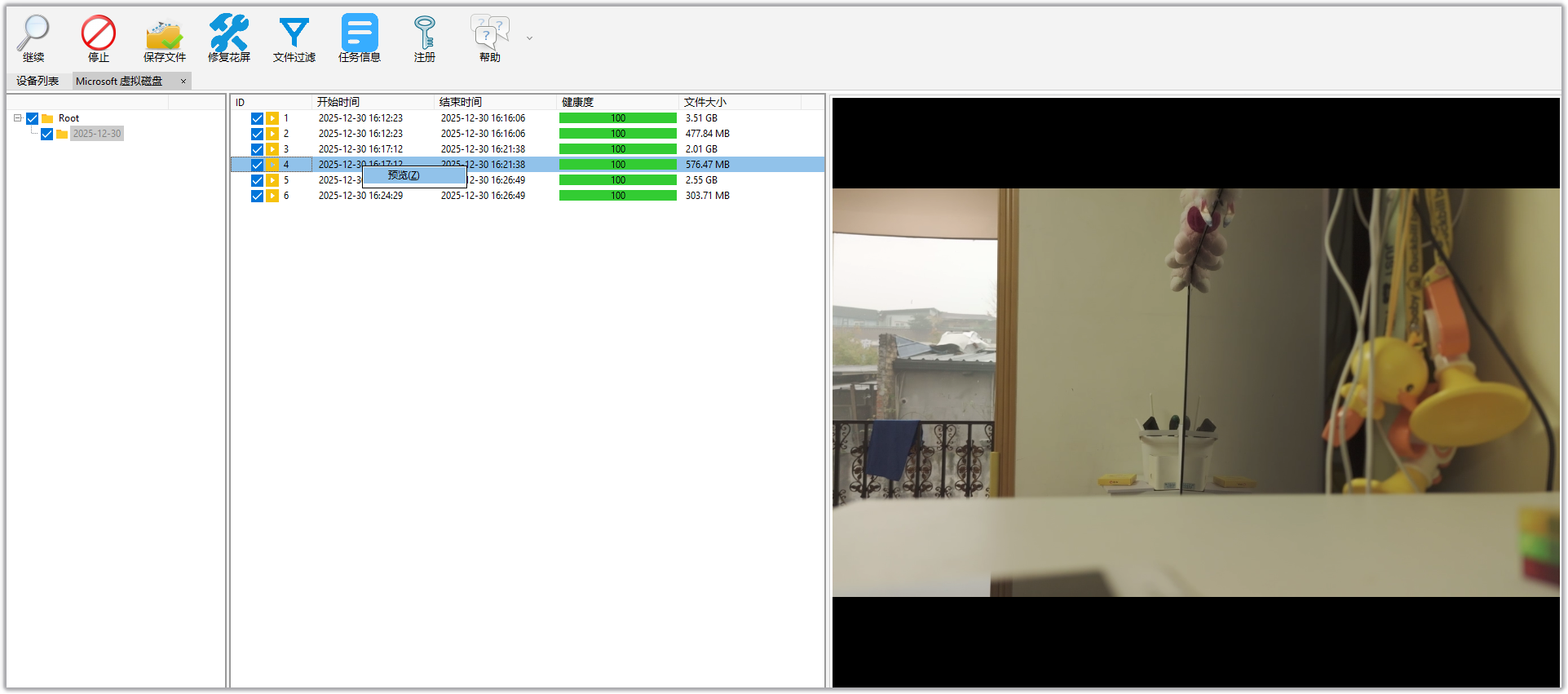
Double-click the file or right-click and select [Preview], click the playback screen or [Stop] button to stop preview
FAQ
Program Exceptions
Program is Corrupted
The program is corrupted or program files are incomplete or antivirus software has falsely detected it. Please reinstall the program and add it to the antivirus software's trusted area before running it again!
Possible causes:
- DataSOS_Video_Recovery.exe file has been cracked;
- Update.dll has been falsely detected by antivirus software or is corrupted;
Check Network
Failed to connect to security service, please check your network and try again.
Possible causes:
- Computer is not connected to the internet;
- DataSOS_Video_Recovery.exe is blocked by firewall and cannot access the internet;
How to Play Videos
MP4/MOV: Use players like PotPlayer to play
DVR/NVR: Try using players like PotPlayer, SmartPlayer, VSPlayer to test playback
Player download links:
PotPlayer official website:Global Potplayer
VSPlayer: VsPlayer - Hikvision Tools
SmartPlayer: Lanzou Cloud