How to Recover Deleted Videos from a Canon EOS R7 SD Card
Recover deleted Canon EOS R7 videos safely. Learn how to stop card use, scan and preview MP4 files, and save recovered footage to another drive.
After videos are deleted from a camera card, the most important factor is often what happens next. Continued recording, formatting, or copying files to the card can overwrite the deleted data. As soon as you notice missing Canon EOS R7 footage, turn off the camera, remove the card, and protect it from further writes.
This guide follows a real recovery session. After the accidental deletion, Windows displayed only about 203 video items. A full scan and video-fragment reconstruction found additional candidate files. The steps below show how the card was scanned, how the results were evaluated, and how selected videos were saved safely.
Before Recovery: Protect the Original Card
Take these precautions before starting a scan:
- Do not record any new photos or videos with the Canon EOS R7;
- Do not format the card or run a disk repair or optimization tool;
- Do not install recovery software on the memory card;
- Prepare another drive with enough free space for the recovered videos;
- If the card reader has a write-protection switch, enable it before connecting the card.
In this case, Windows could still recognize the card, but fewer videos were visible after the accidental deletion.
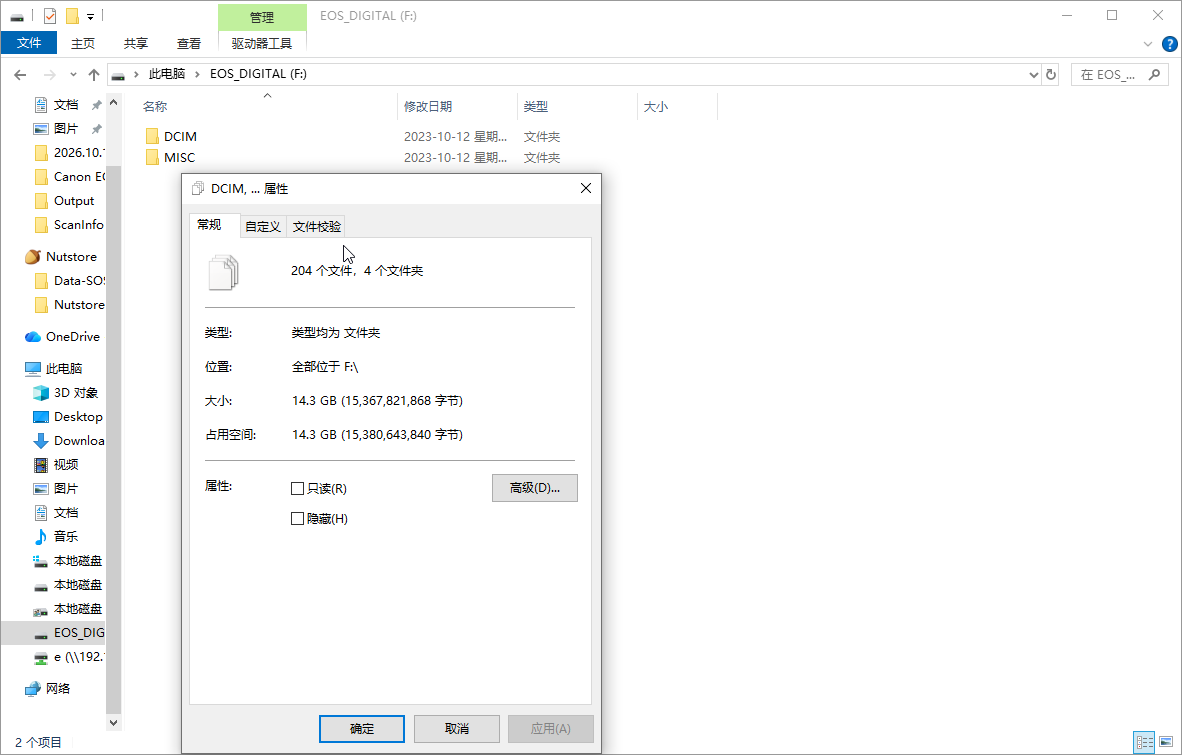
The video folder showed about 203 items in File Explorer. Recording the visible file count and folder condition provides a useful baseline for comparing the later scan results.
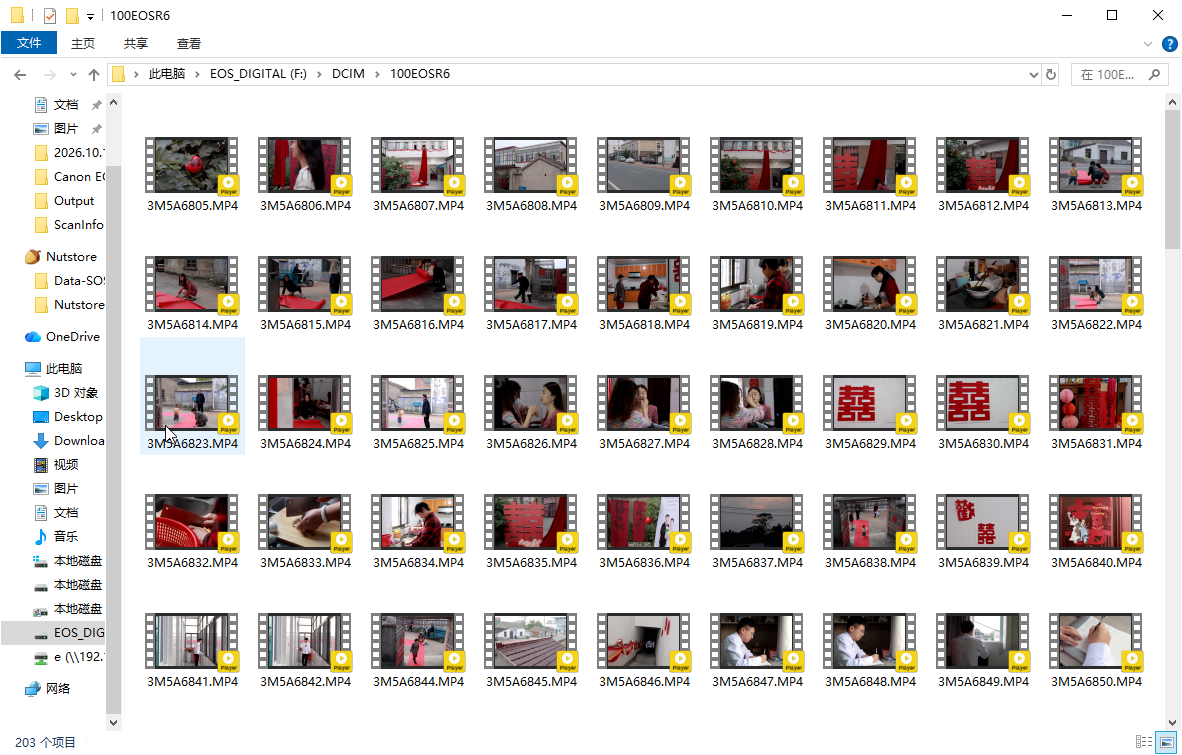
Canon EOS R7 Deleted Video Recovery Steps
1. Select the Correct Card and Canon Recovery Mode
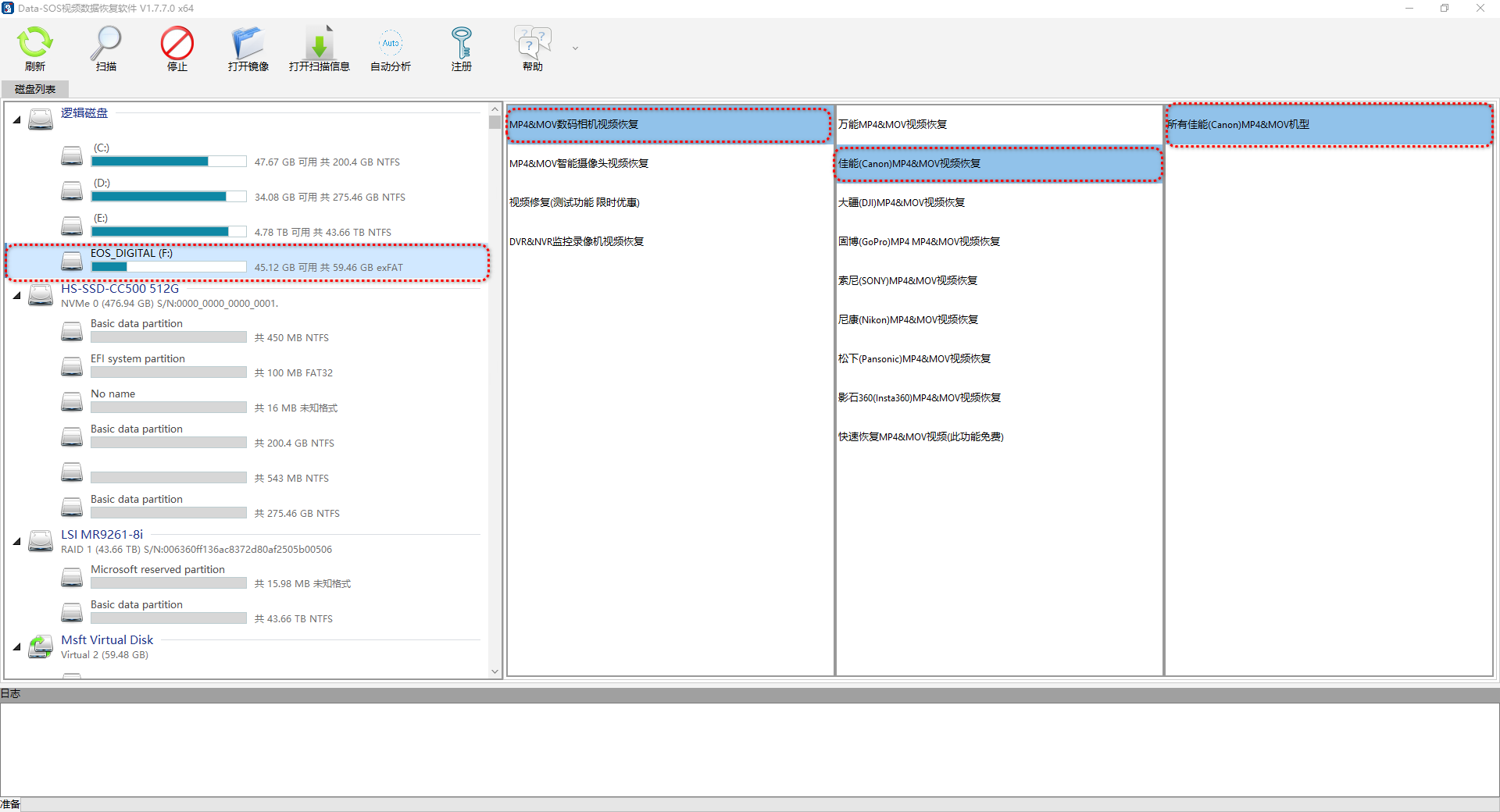
Connect the card through a reader and start Data-SOS Video Recovery Software. In the disk list, identify the Canon card by its drive letter, capacity, and file system. The card in this example appears as EOS_DIGITAL (F:).
Next, choose the MP4/MOV digital-camera recovery function, select Canon, and then select the appropriate camera model. Verify the source carefully so that you do not scan an unrelated computer drive.
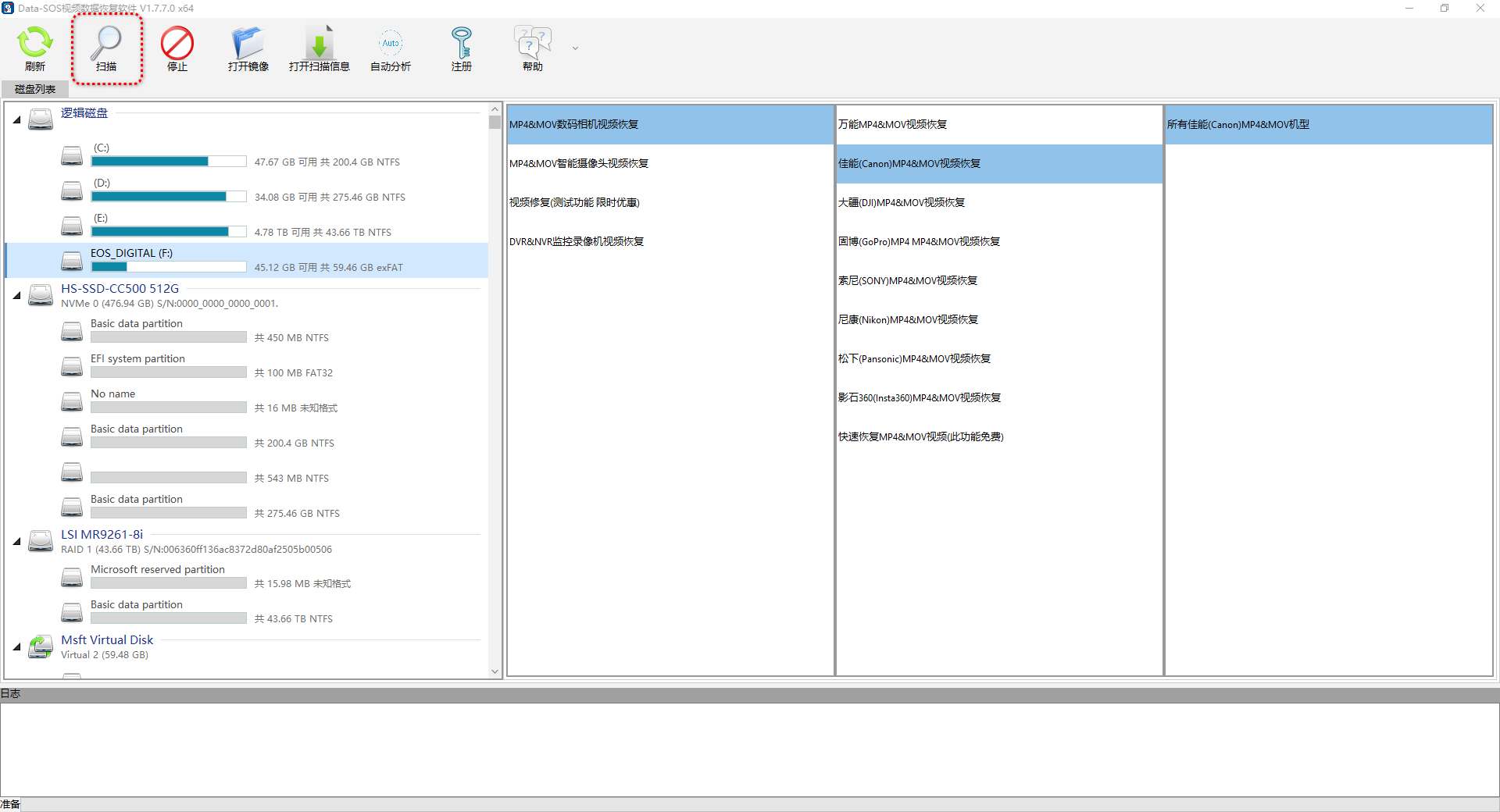
2. Start the Scan
After confirming the card and recovery type, click the Scan button on the toolbar.
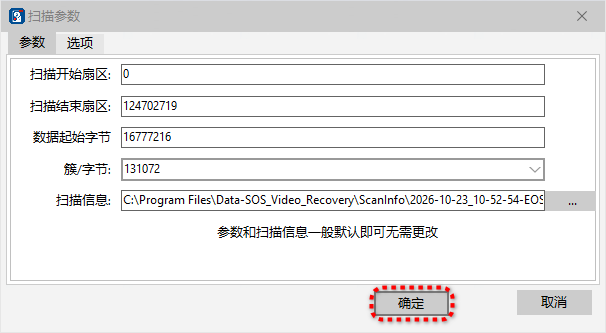
3. Confirm the Scan Range
The scan settings window displays the start sector, end sector, and location used for scan information. For a normal full-card recovery, the default values are usually appropriate. Change the sector range only when you know exactly where the relevant data is located.
4. Let Scanning and Video Reconstruction Finish
Keep the reader connected while the scan is running. Do not remove the card, put the computer to sleep, or launch another program that writes to the card. The required time depends on card capacity, read speed, and media condition.
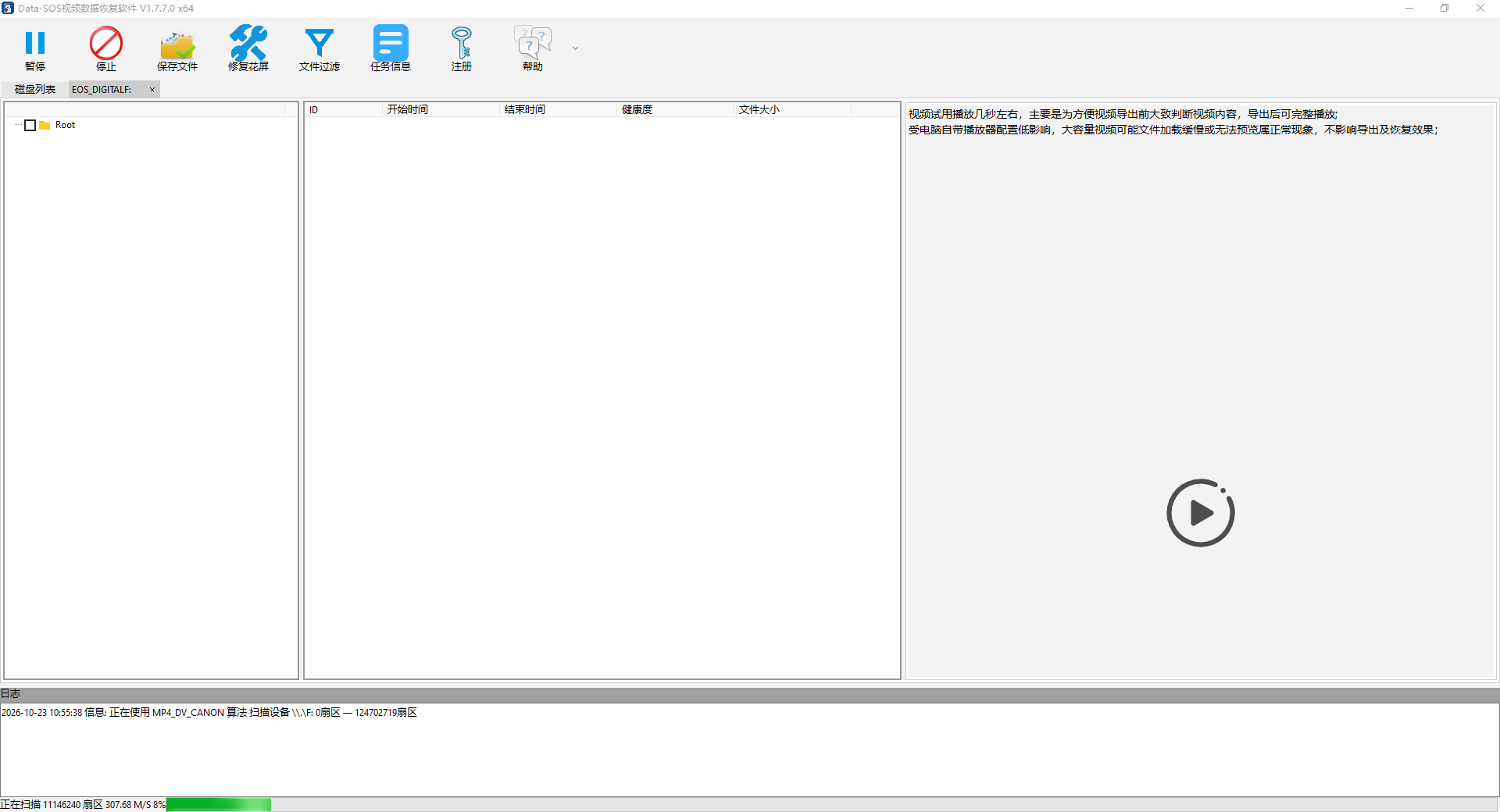
When the device scan ends, the software continues analyzing the data and reconstructing possible MP4/MOV fragments. Wait for this stage to finish before judging the result; temporary counts displayed during scanning may be incomplete.
5. Review the Number and Size of Candidate Videos
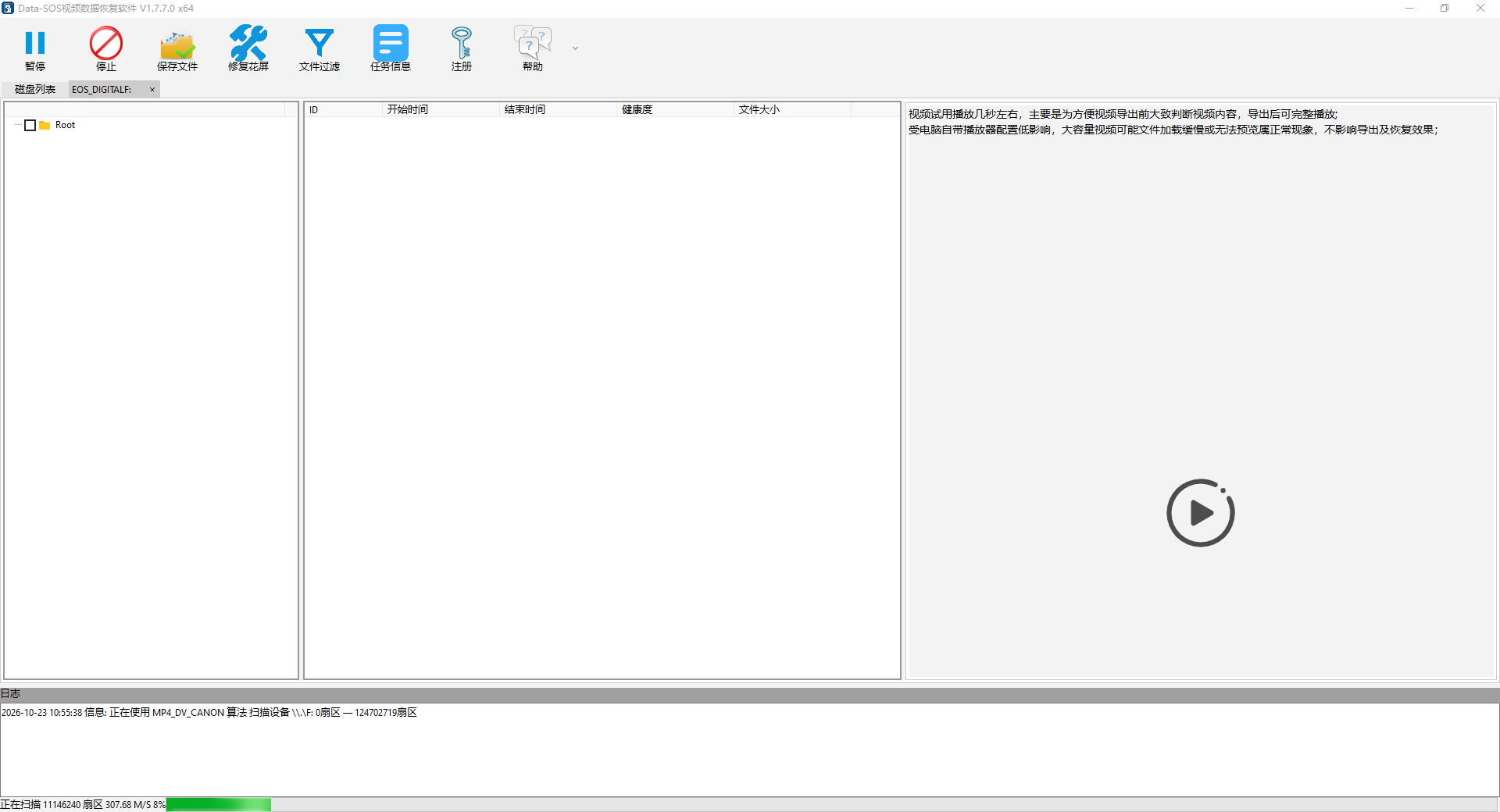
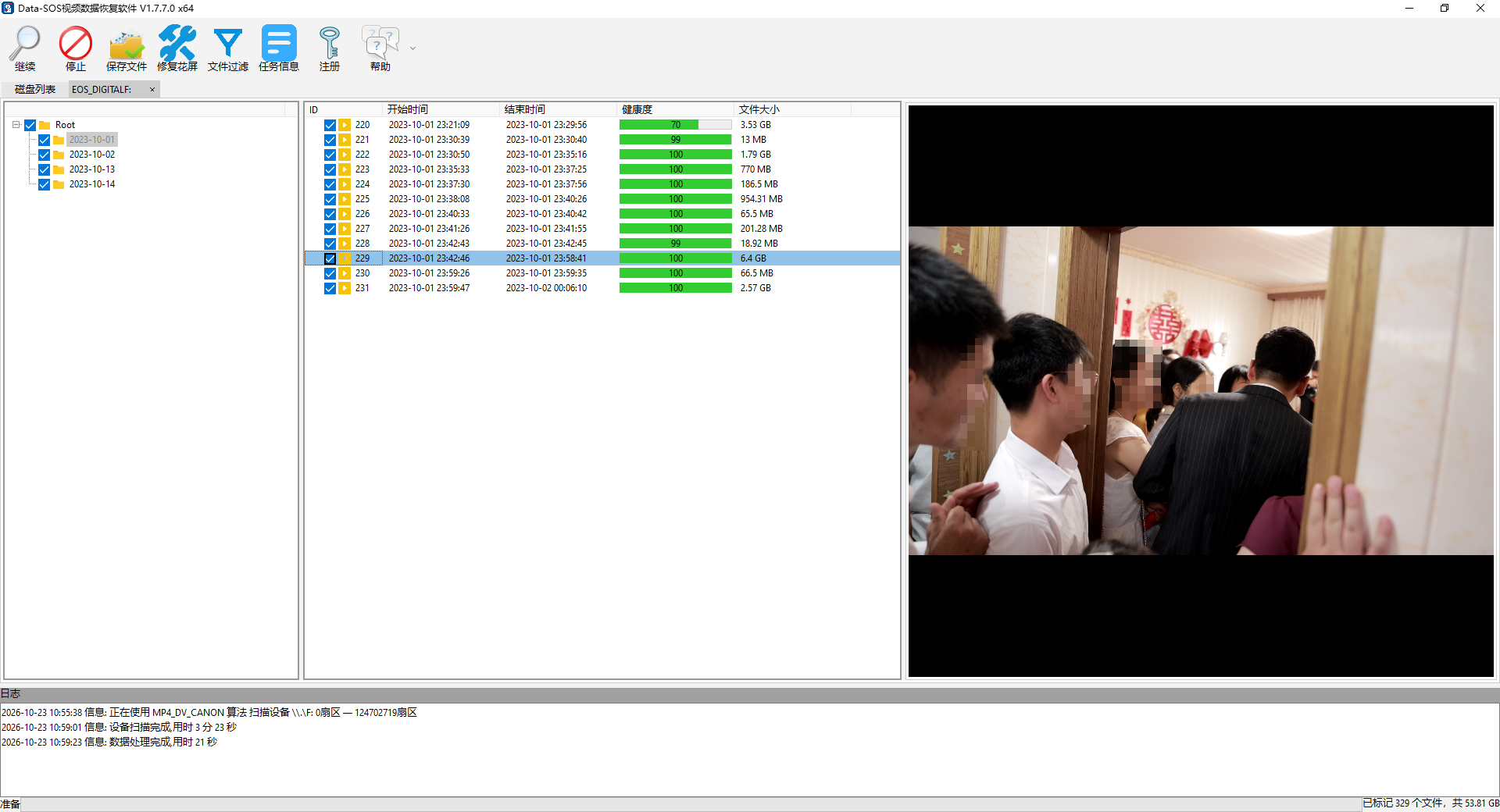
At the end of this scan, the software showed 329 marked candidate files totaling approximately 53.81 GB. The count was higher than the number of videos still visible in Windows, indicating that the scan had found video data no longer listed normally by the file system.
The figure 329 should not be interpreted as exactly 329 successfully recovered deleted videos. The results may include existing files, reconstructed files, or incomplete fragments. Use capture time, file size, health information, and preview playback to decide which files are useful.
6. Preview Videos Before Saving Them
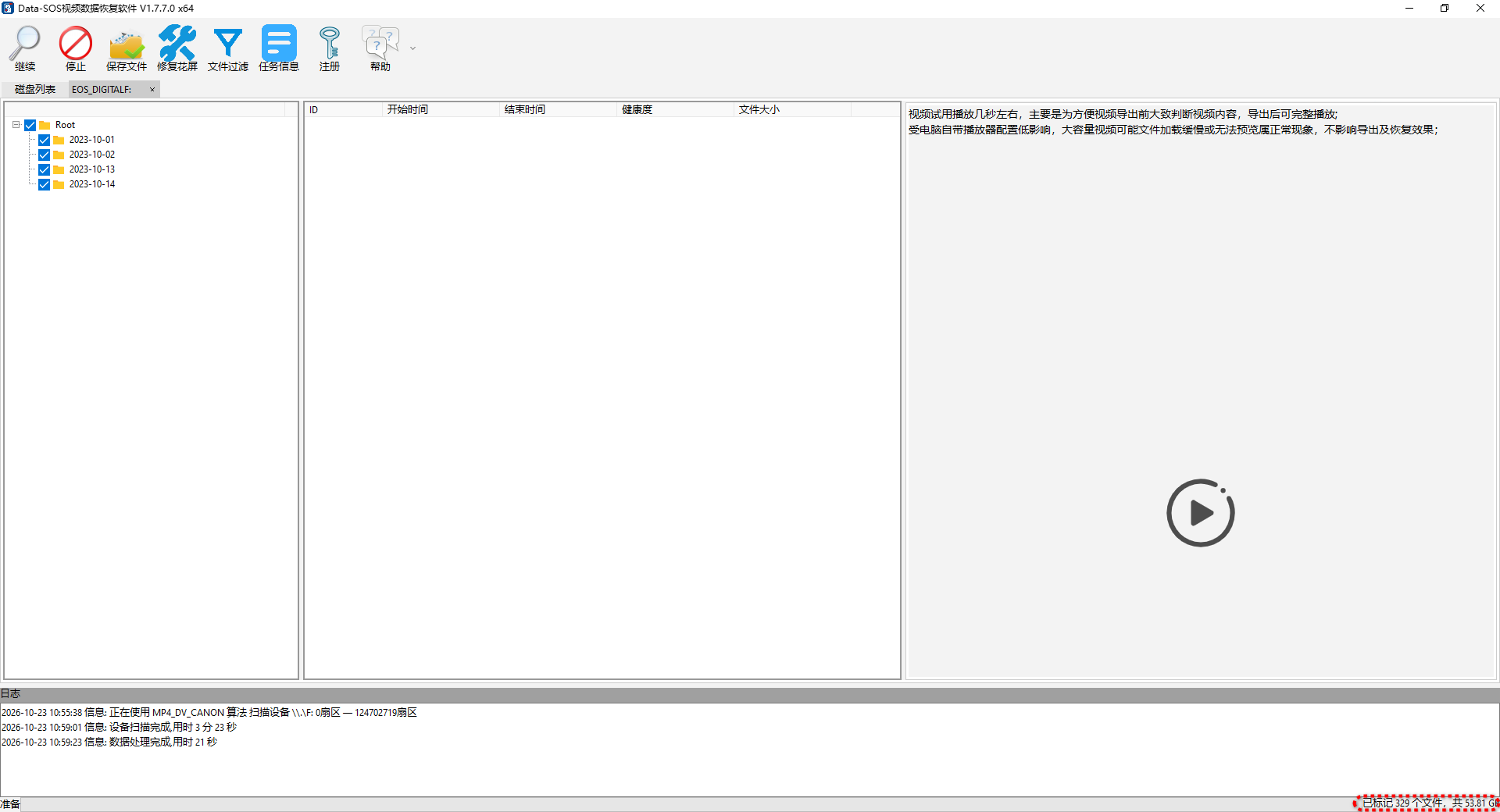
Expand the date folders on the left and compare capture times, sizes, and health values. Double-click a candidate to preview it. A clip that shows the expected scene, has a reasonable duration, and plays continuously is usually a better candidate to save first.
The built-in preview is intended for identifying content quickly. Large or high-bitrate files may preview slowly on some computers. Choppy preview playback does not automatically mean the exported file is damaged, so important clips should be saved and tested in a regular media player.
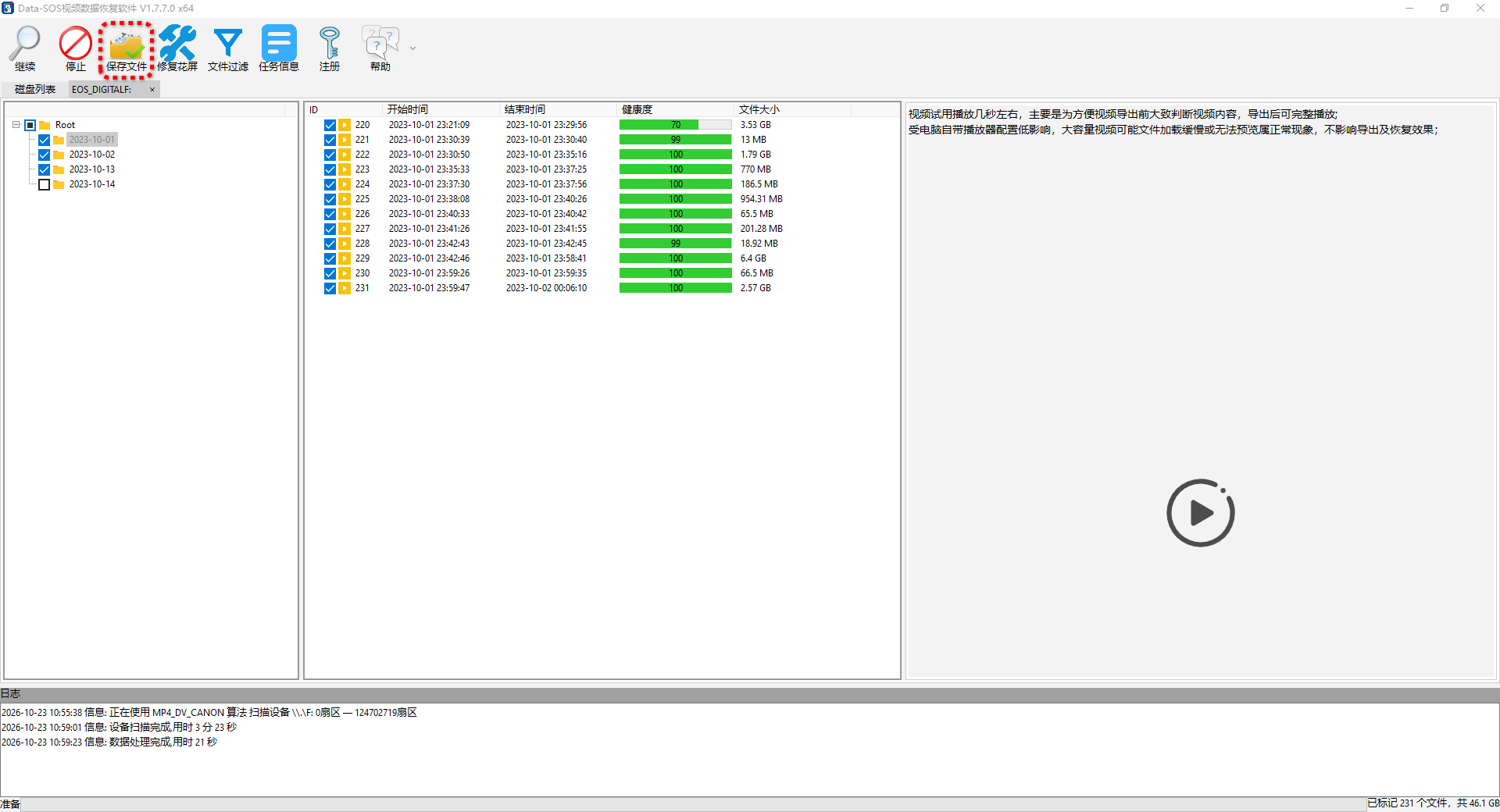
7. Select the Required Videos and Save Them Elsewhere
Select the dates or individual files you need, then click Save Files. In the example shown, the chosen subset contains 231 files totaling about 46.1 GB. Selecting only relevant footage avoids exporting every candidate unnecessarily.
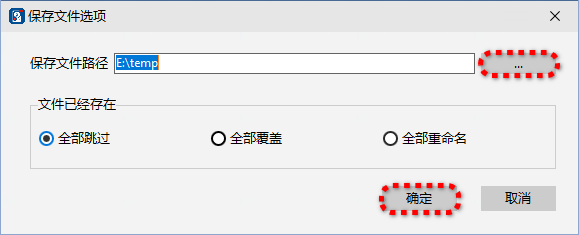
Choose a folder on the computer or another external drive. Never save recovered files back to the Canon card being scanned, because new writes could overwrite videos that have not yet been recovered.
If files with the same names already exist in the destination, choose skip, overwrite, or rename according to your needs. Renaming is generally the safer option when you are unsure.
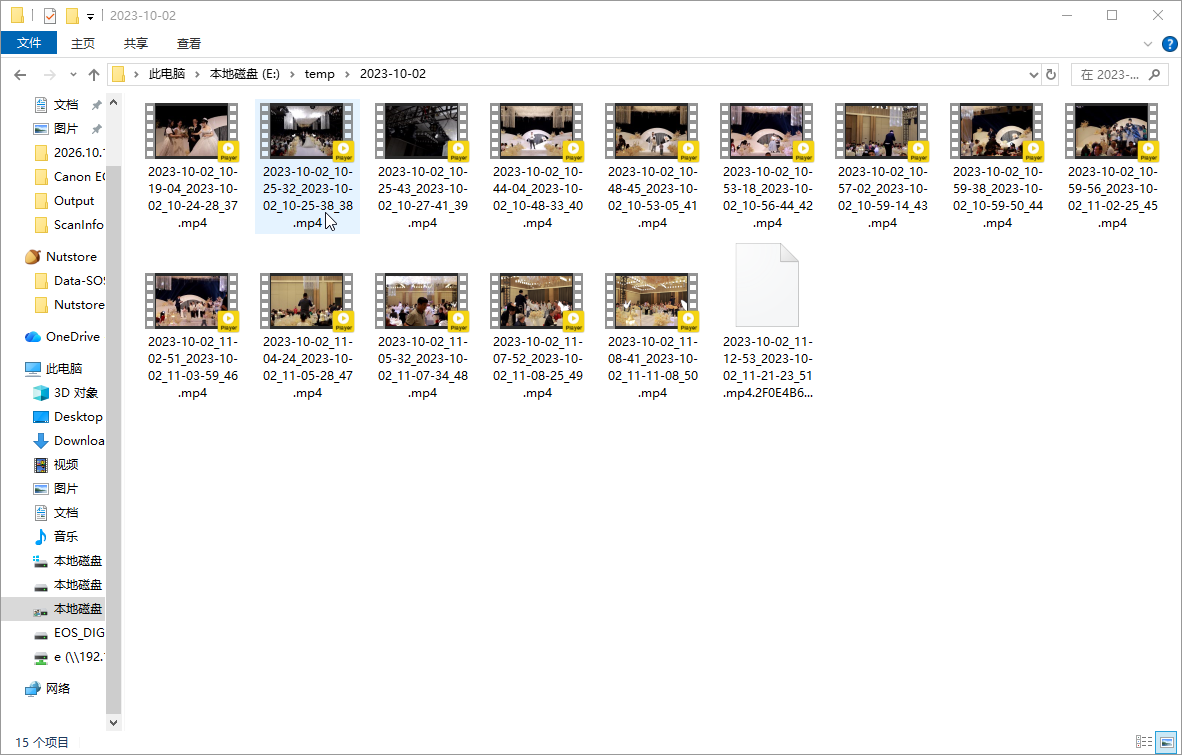
8. Verify the Saved Videos
Open the destination folder after saving finishes. Check files from different dates and of different sizes, and play important footage from beginning to end in your usual media player. Confirm that video, audio, and duration are all correct.
How to Tell Whether a Recovered Video Is Usable
Do not rely on the file count alone. A more useful review includes the following checks:
- The preview contains the footage that was actually deleted;
- Capture time and file size match what you expect;
- The file opens normally and reports a reasonable duration;
- Video and audio remain stable when you seek through the timeline;
- Important clips play completely, not just for the first few seconds.
If some files cannot be previewed or played, their original data may have been overwritten, required fragments may be missing, or the card may have read errors. Avoid further writes and keep the original card available for additional recovery work.
Why Deleted Camera Videos May Still Be Recoverable
Deleting a file normally marks its storage space as available for reuse; it does not always erase the underlying video data immediately. Until new photos or videos overwrite those sectors, recovery software may still identify the content from file structures and video-data patterns.
This is why stopping all camera use immediately matters. Recovery results still depend on overwrite activity, fragmentation, and the physical condition of the memory card. No recovery tool can guarantee that every deleted video will be restored.
Key Takeaway
When Canon EOS R7 footage is deleted accidentally, stop using the original card first. Select the correct card and Canon MP4/MOV recovery mode, allow scanning and fragment reconstruction to finish, preview the candidates, and save only the required videos to another drive. This process reduces the risk of secondary overwriting and helps you evaluate recovery quality based on actual playback rather than file count alone.