DJI Osmo Pocket 4P SD Card Format Error: Video Recovery Guide
Learn how to recover MP4/MOV videos when a DJI Osmo Pocket 4P SD card asks to be formatted, using Data-SOS Video Recovery Software to scan, preview, and save files safely.
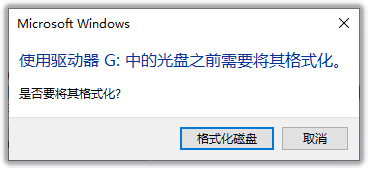
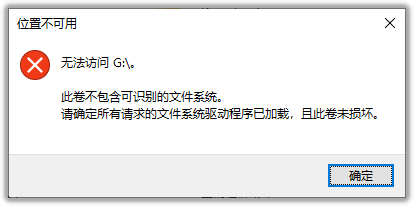
If a DJI Osmo Pocket 4P reports that its SD card needs to be formatted, or your computer cannot read the videos on the card, do not format it or continue recording. Writing new data may overwrite videos that have not yet been recovered and reduce the chance of getting them back.
The following guide uses Data-SOS Video Recovery Software to explain the complete process, from scanning the memory card to previewing and saving recovered videos.
What to Do Before Recovery
- Stop using the affected SD card and do not record or copy new files to it;
- Do not format, initialize, or run a disk repair on the card yet;
- Connect the card to your computer with a reliable card reader;
- Prepare another drive with enough free space for the recovered videos;
- If the card repeatedly disconnects, reports the wrong capacity, or shows signs of physical damage, stop retrying and consider professional assistance.
These are examples of the prompts you may see when the SD card asks to be formatted or cannot be read normally:
Steps to Recover Videos from a DJI Osmo Pocket 4P SD Card
1. Connect the SD Card and Start Data-SOS
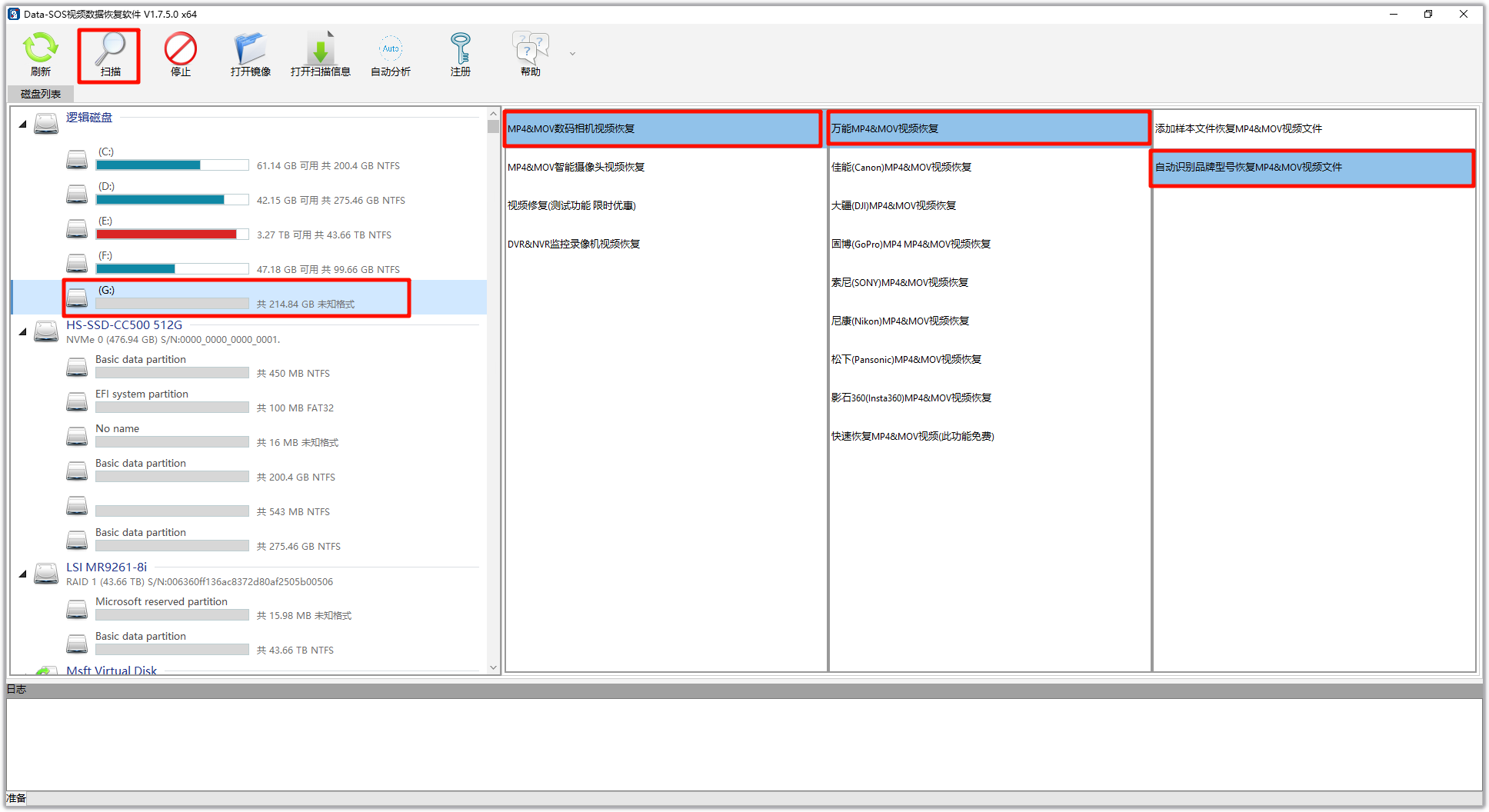
Download, install, and launch Data-SOS Video Recovery Software. Connect the DJI Osmo Pocket 4P SD card to your computer through a card reader, then identify and select the card in the “Disk List.”
Check the card capacity carefully so that you do not accidentally select your computer's internal drive or another storage device.
2. Select the Video Recovery Type and Start Scanning
Choose the following options from the function, brand, and model lists:
- “MP4&MOV Digital Camera Video”;
- “Universal MP4&MOV Video Recovery,” or select the matching device brand;
- “Automatically Identify Brand and Model to Recover MP4&MOV Video Files.”
After confirming the selections, click the “Scan” button on the toolbar.
3. Confirm the Scan Parameters
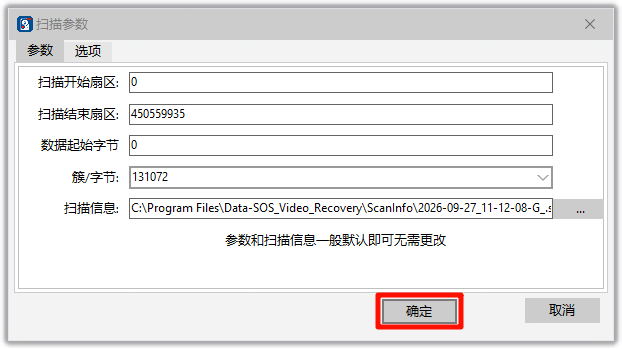
When the “Scan Parameters” window appears, the default settings are generally appropriate. Click “OK” to start scanning. If you know the exact sector range that needs to be scanned, you can adjust it, but avoid changing these values when you are unsure.
4. Wait While the Software Scans the SD Card
The software will scan the card automatically and search for recoverable videos. The time required depends on the card capacity, read speed, and media condition. Keep the card reader connected and do not remove the SD card while scanning is in progress.
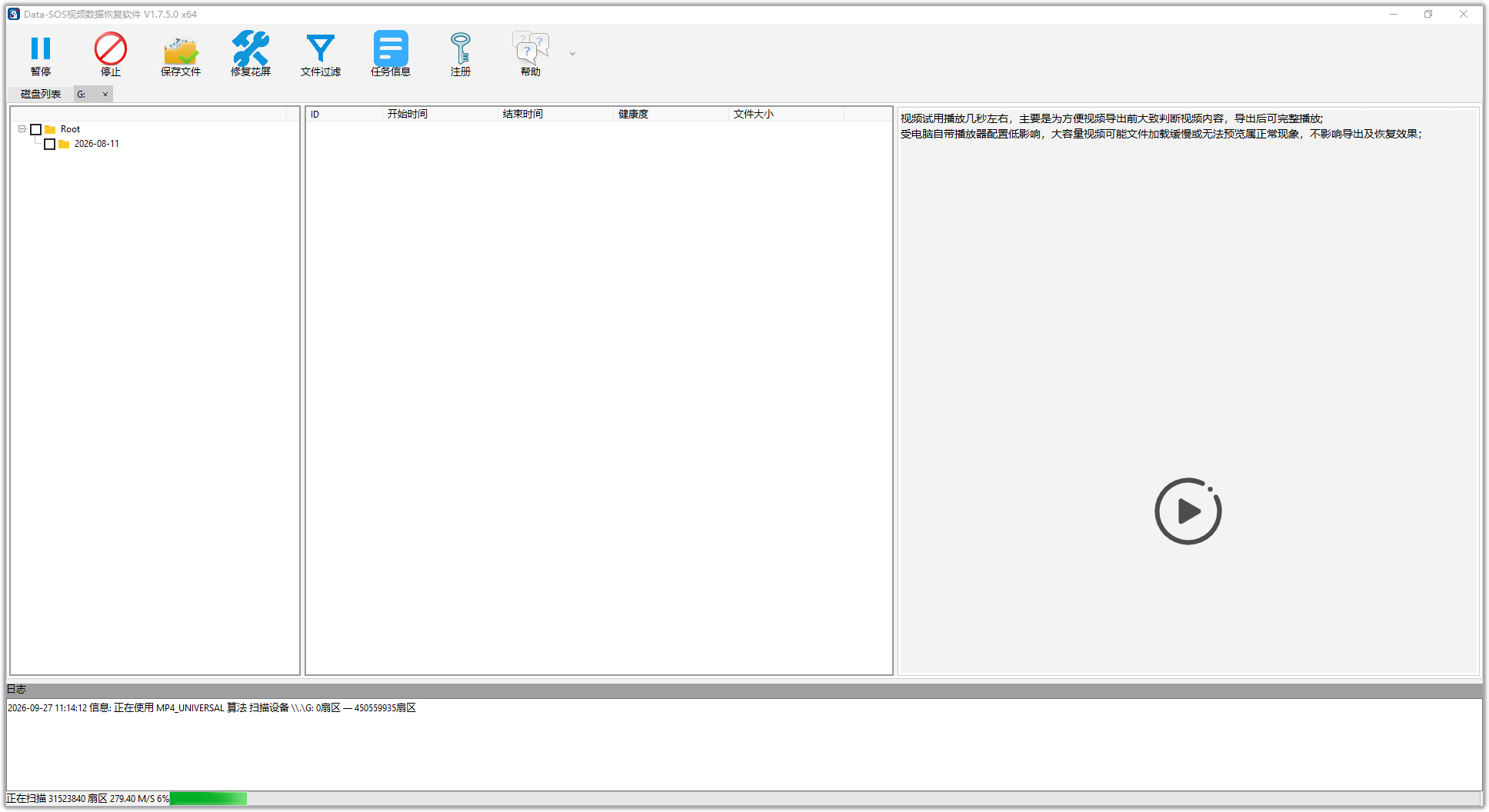
5. Preview the Videos Found by the Scan
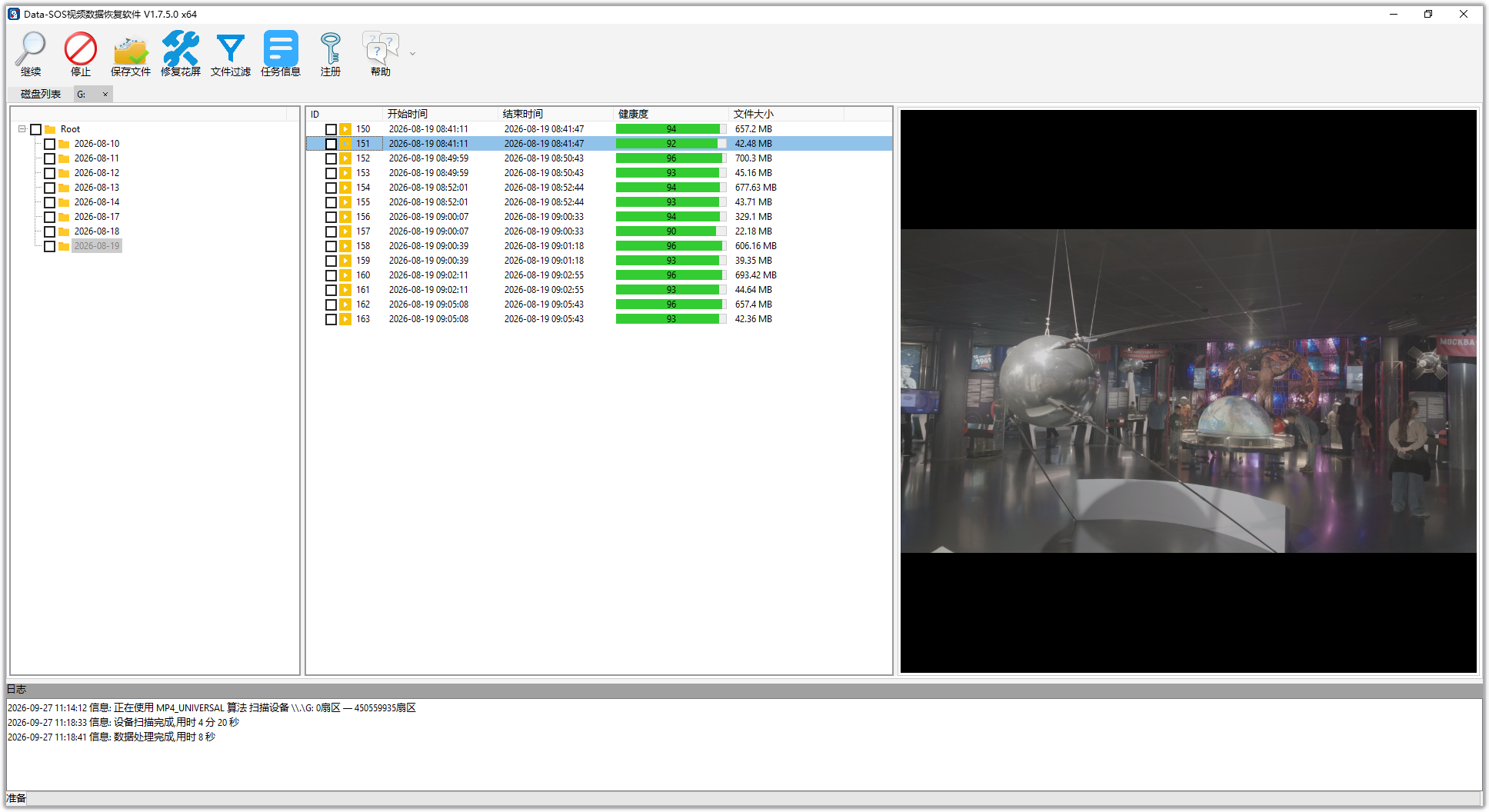
After the scan finishes, double-click a video in the file list to preview it. Check whether the picture plays continuously, the duration looks reasonable, and the audio sounds normal before deciding which files to save.
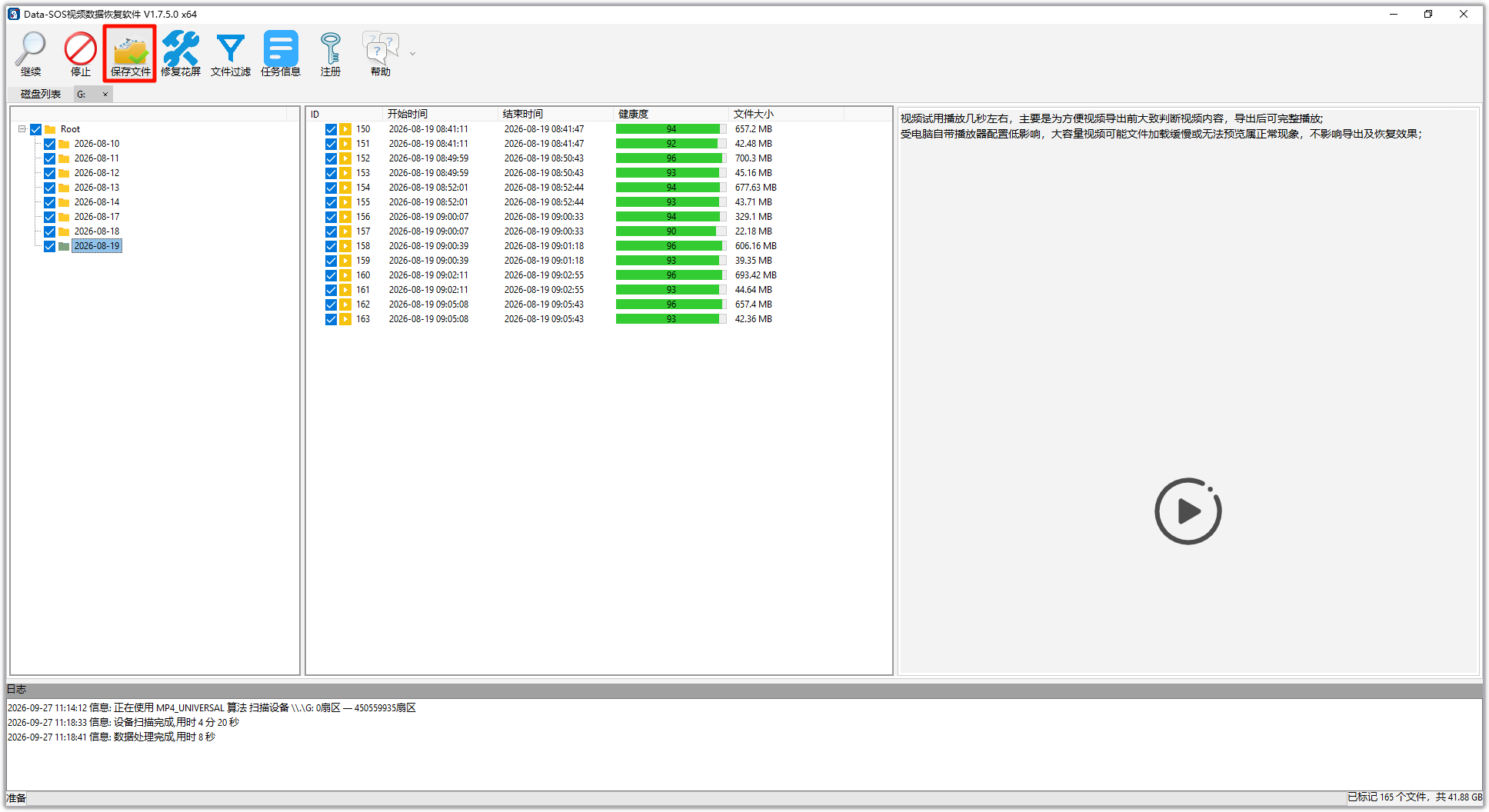
6. Save the Recovered Videos to Another Drive
Select the videos you want to recover, click “Save Files” on the toolbar, and choose a destination when prompted. Save the files to your computer or another storage device, not to the SD card being recovered, because writing to the original card may overwrite data that has not yet been recovered.
Frequently Asked Questions
Can I Format the SD Card Before Trying to Recover the Videos?
It is not recommended. Formatting may change file system information on the card, and continued use may write new data. A safer approach is to stop using the card and attempt recovery first. Format it only after confirming that your important videos have been saved safely.
Why Should Recovered Videos Be Saved to Another Drive?
Saving recovered files back to the original SD card may overwrite content that has not yet been recovered. Always save the results to another drive or storage device.
Why Are Some Videos Missing After the Scan?
Recovery results depend on whether the data has been overwritten, the condition of the SD card, and the integrity of the original video structure. Data recovery cannot guarantee that every file will be restored. If the card is unstable or contains critical footage, minimize repeated scans and consider professional recovery assistance.
Summary
When a DJI Osmo Pocket 4P SD card asks to be formatted, stop writing to the card immediately and avoid formatting it first. Select the correct card and MP4/MOV recovery mode in Data-SOS, preview the scan results, and save the required videos to another drive. This reduces the risk of further overwriting and makes the recovery process safer.