How to Repair Canon Camera DAT Files After a Power Loss
Learn how to repair unplayable Canon DAT files created after a power loss using Data-SOS and a playable MOV recorded with the same camera settings.
If a Canon camera suddenly loses power, shuts down unexpectedly, or runs out of battery while recording, it may leave behind a DAT file that cannot be played directly. Do not delete the file or repeatedly modify its contents. A playable MOV recorded by the same camera with the same recording settings can provide a better reference for analyzing and repairing the damaged video.
The following guide uses Data-SOS Video Recovery Software to demonstrate the complete Canon DAT file repair process.
What Do You Need Before Starting?
- One or more DAT files created after the camera lost power;
- A playable MOV recorded by the same Canon camera;
- Matching resolution, frame rate, and encoding settings for the MOV and DAT files whenever possible;
- Enough free disk space to save the repaired videos.
Copy the DAT files and the playable MOV to your computer first, and keep backups of the original files. Do not save repaired videos back to the original memory card, as doing so could overwrite data that may still be needed.
Steps to Repair a Canon Camera DAT Video
1. Copy the DAT File and a Playable MOV to Your Computer
Copy the DAT file created after the power loss and the playable MOV you will use as a reference to your computer. Whenever possible, choose a reference video recorded by the same camera in the same recording mode and with the same settings.
2. Start Data-SOS and Open the Video Repair Feature
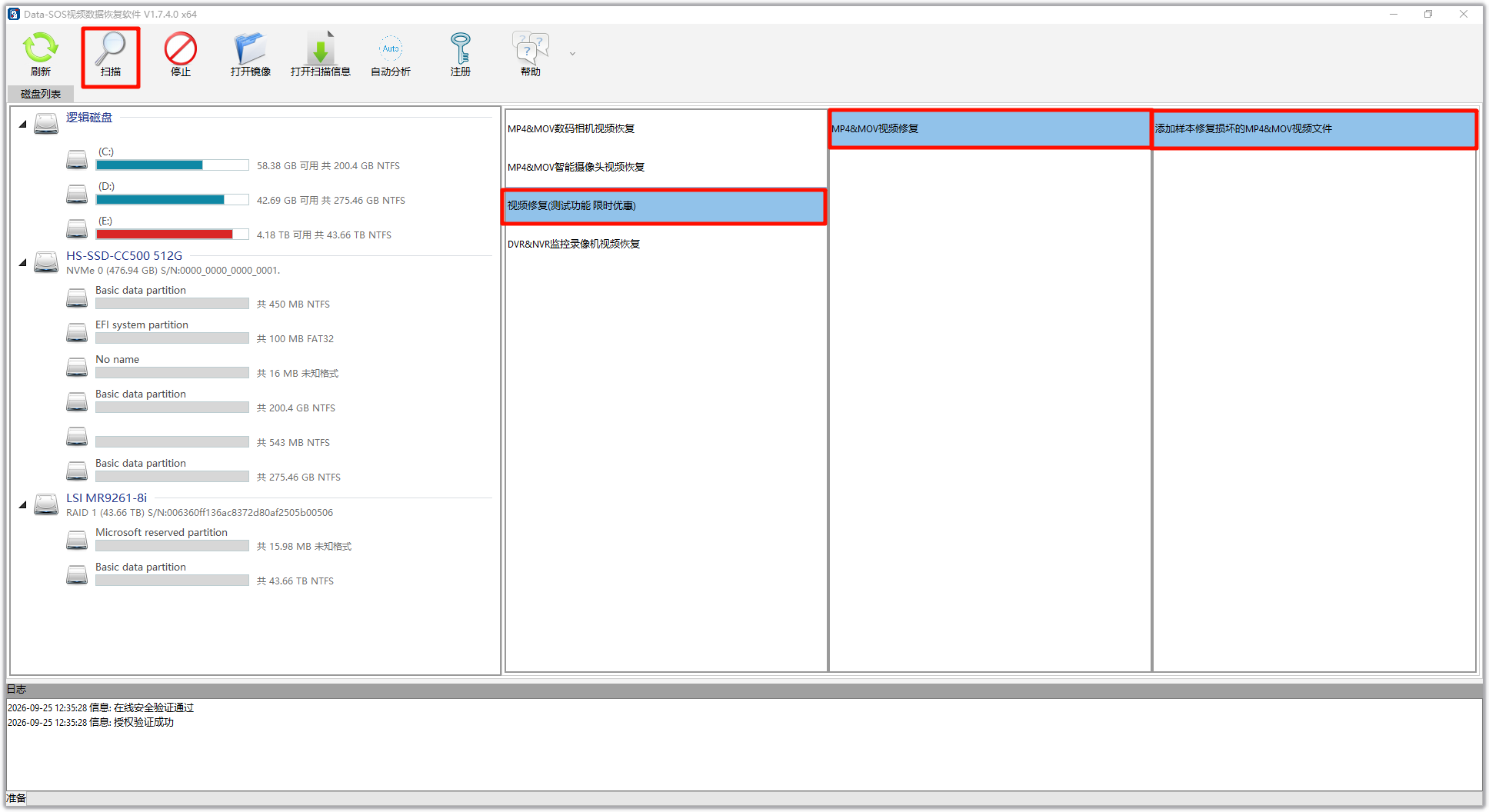
Launch Data-SOS Video Recovery Software, select the appropriate feature on the main screen, and then click the “Scan” button.
3. Click “Repair Video”
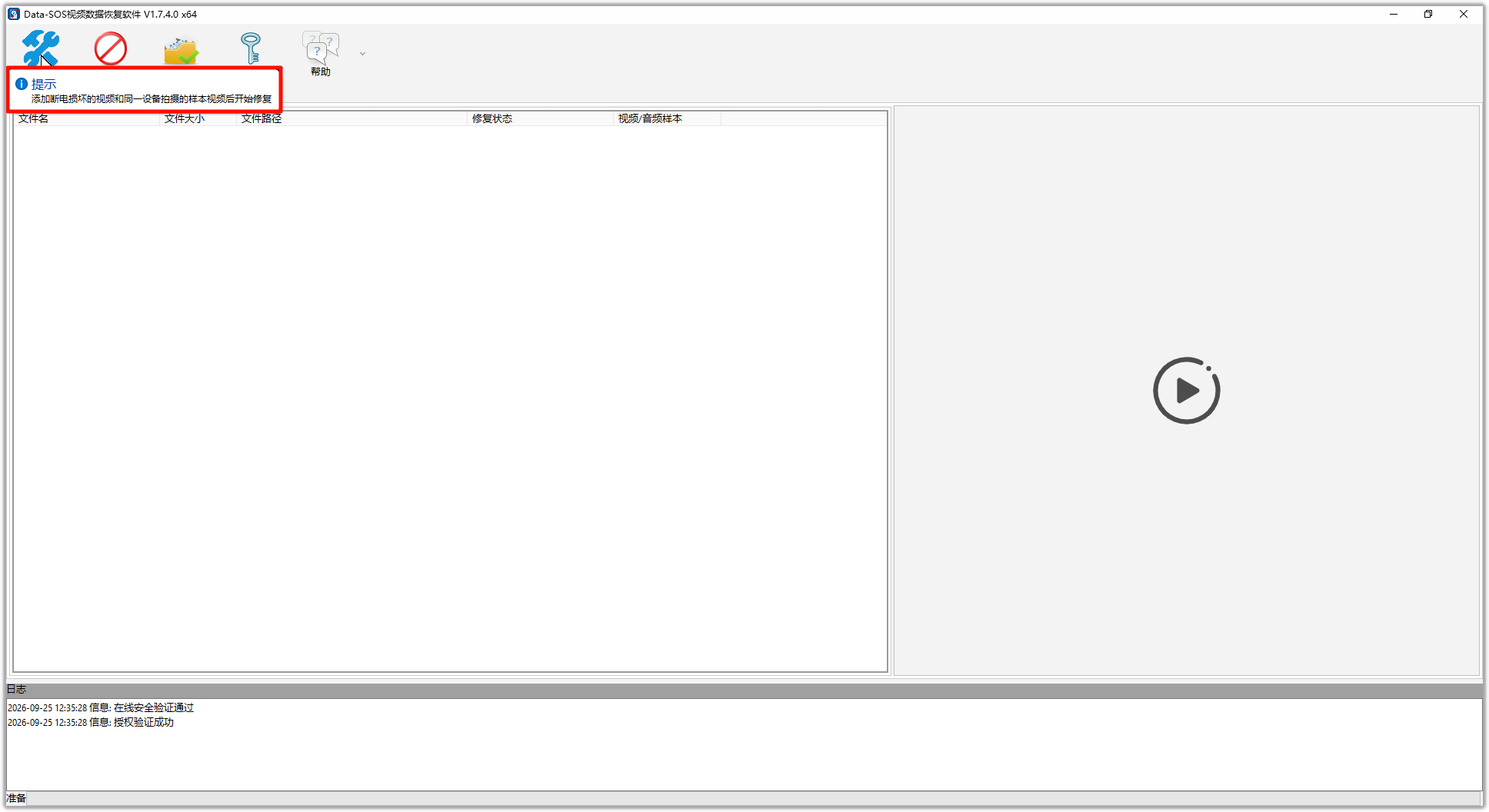
Follow the on-screen instructions and click the “Repair Video” button on the toolbar to begin selecting the damaged video files.
4. Select the DAT Files You Want to Repair
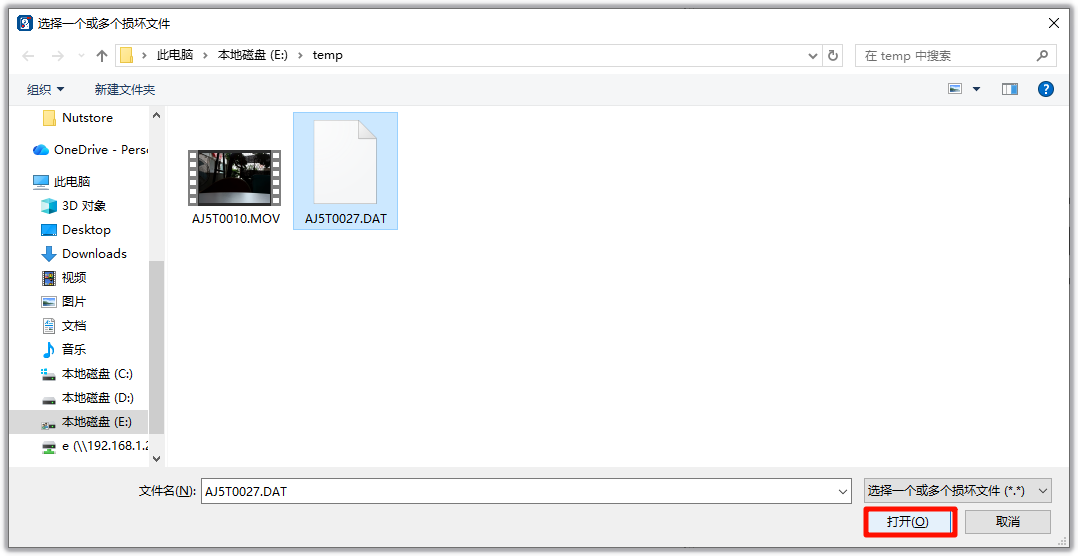
In the file selection dialog, select one or more DAT files that cannot be played, and then confirm your selection. For a batch repair, it is best to use files from the same Canon camera with identical or similar recording settings.
5. Select a Playable MOV Reference File
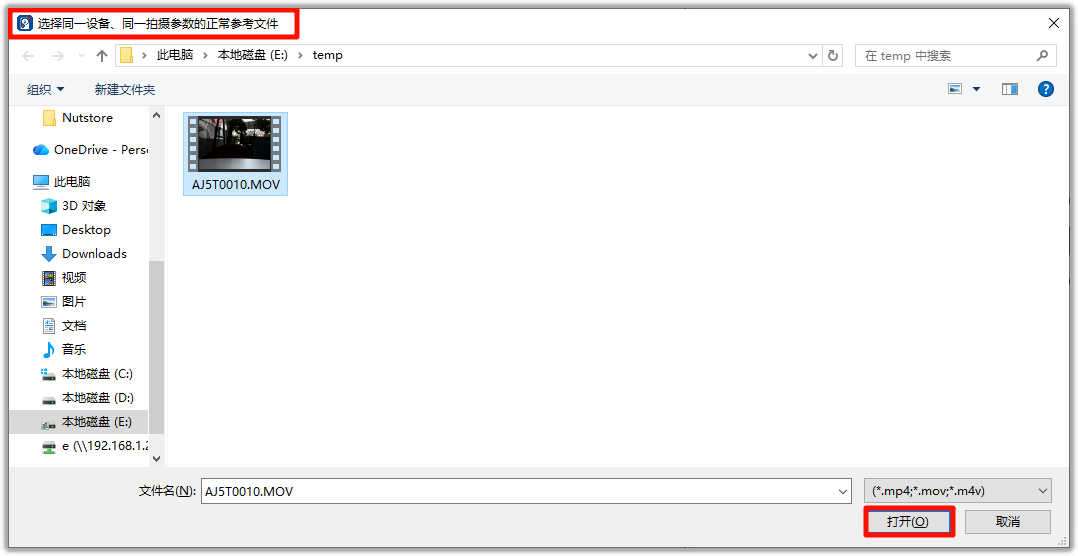
When prompted, open the file selection dialog again and choose a playable MOV recorded by the same camera with the same settings. The closer the reference file matches the damaged file, the more useful it will be when the software identifies the video structure.
6. Wait for the Automatic Repair to Finish
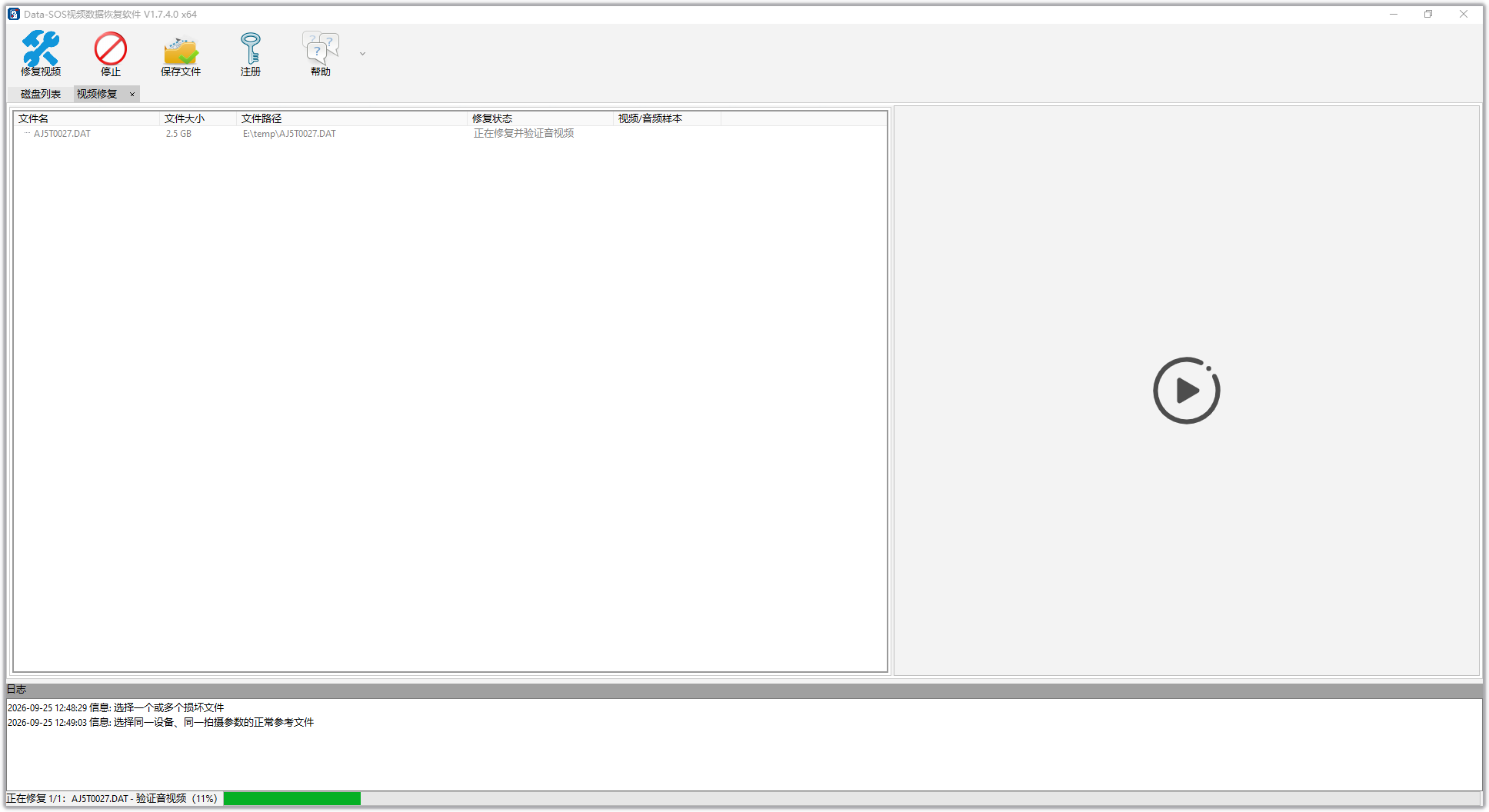
After you confirm the files, the software will begin analyzing and repairing them automatically. Processing time depends on the file size, number of files, and your computer's performance. Keep the software running until the process is complete.
7. Preview the Repaired Video
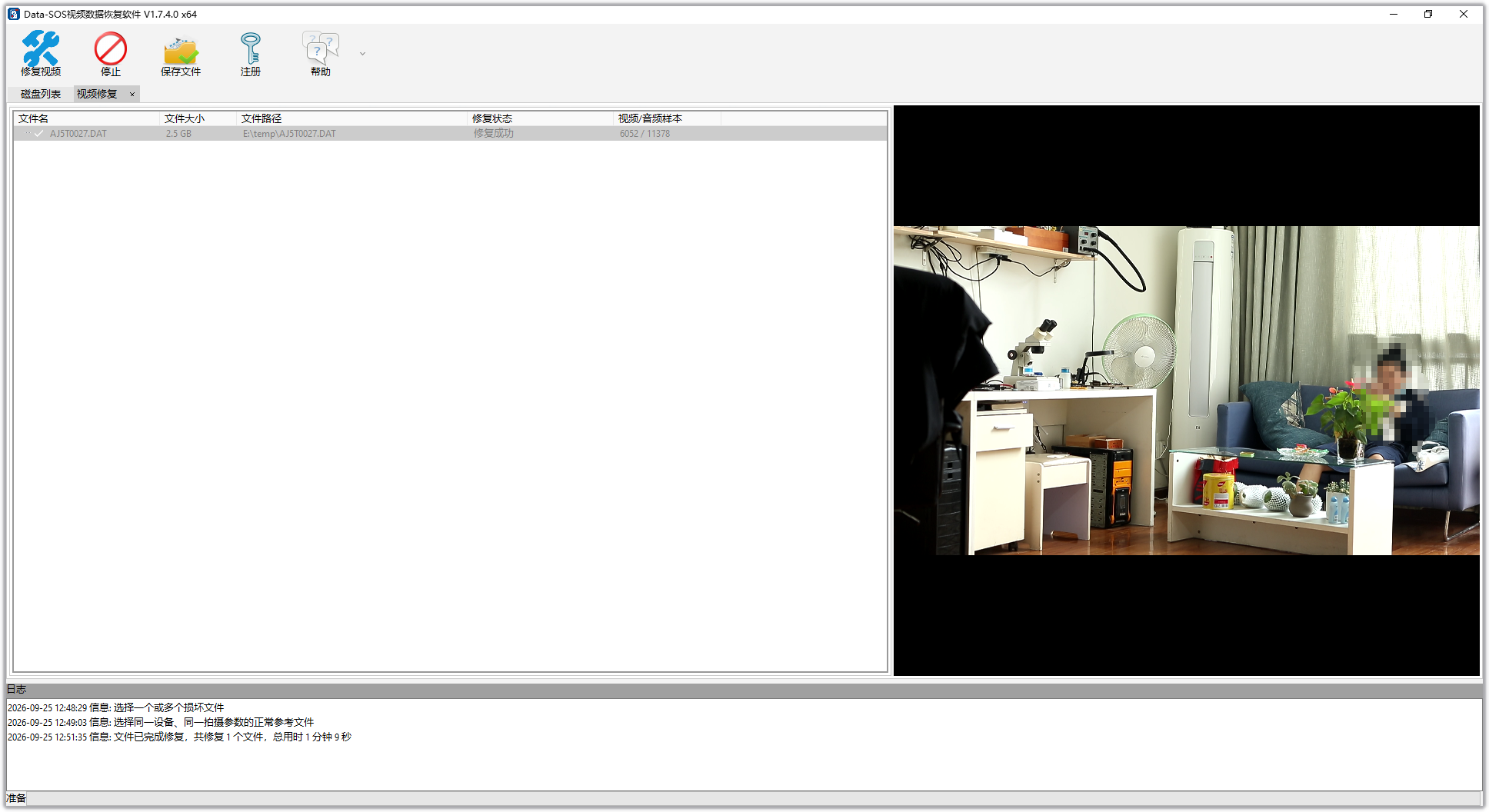
When the repair is complete, double-click the successfully repaired video to preview it. Check whether the picture plays continuously, the duration looks reasonable, and the audio sounds normal.
8. Save the Repaired File to Your Drive
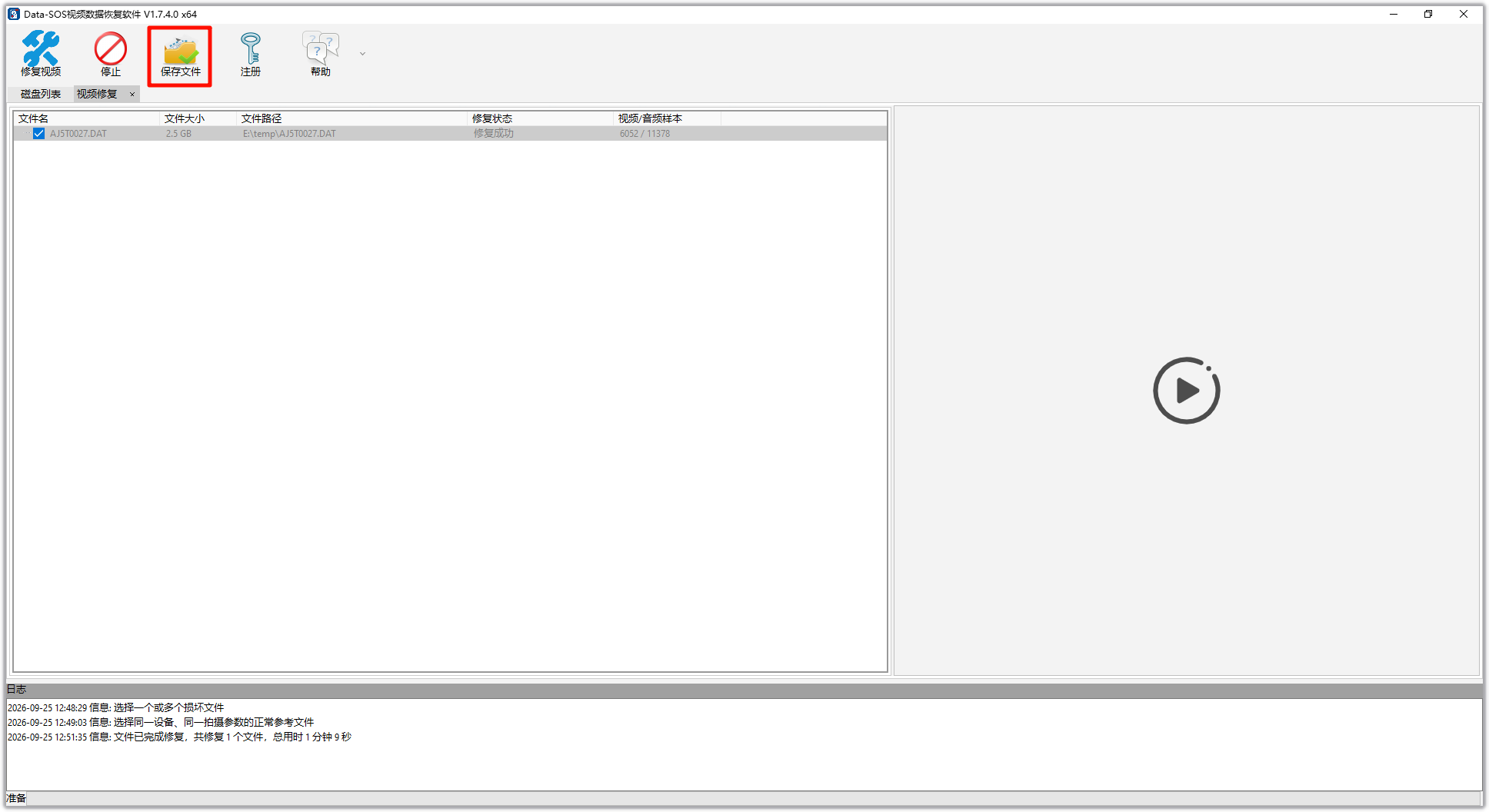
After confirming the preview, click the “Save Files” button on the toolbar and save the repaired video to your computer. Choose a drive or folder other than the original memory card, and keep the original DAT file until you have confirmed that the repaired video was saved successfully.
How Should You Choose a Reference MOV File?
Choosing the right reference file is an important part of repairing a Canon DAT video. Use the following order of preference:
- Choose a video recorded by the same Canon camera that created the DAT file;
- Match the resolution, frame rate, and video format of the damaged file;
- Match the recording mode and other relevant settings as closely as possible;
- Use a file that plays normally and has not been edited, transcoded, or compressed by an online platform.
If the first repair result is unsatisfactory, try again with a playable MOV whose recording settings more closely match the DAT file. Do not modify or overwrite the original DAT file.
Frequently Asked Questions
Can I Repair a DAT File by Renaming It with a MOV Extension?
Changing only the file extension usually cannot restore video structures that were not written correctly when the camera lost power, so the file may still be unplayable. Keep the original DAT file and use a playable reference video for analysis and repair.
Why Must the Reference Video Use the Same Camera and Settings?
A playable MOV provides a structural reference based on the camera and recording settings that created the damaged file. File structures may differ between camera models, resolutions, frame rates, and encoding settings, so an unrelated video may not be a suitable substitute.
Why Should I Preview the Video Before Saving It?
Previewing helps you check whether the picture, duration, and audio meet your expectations. If the result is unsatisfactory, try a more closely matched reference MOV before saving the final repaired video.
Summary
To repair a DAT file created when a Canon camera loses power, keep the original file and find a playable MOV recorded by the same camera with the same settings. Follow the sequence “select the damaged DAT file—select a playable MOV reference—repair automatically—preview—save” to complete the Canon DAT video repair process more efficiently.